 Photinerary
Locations and journal
Save the places you shoot, find them again, and keep a record of every visit.
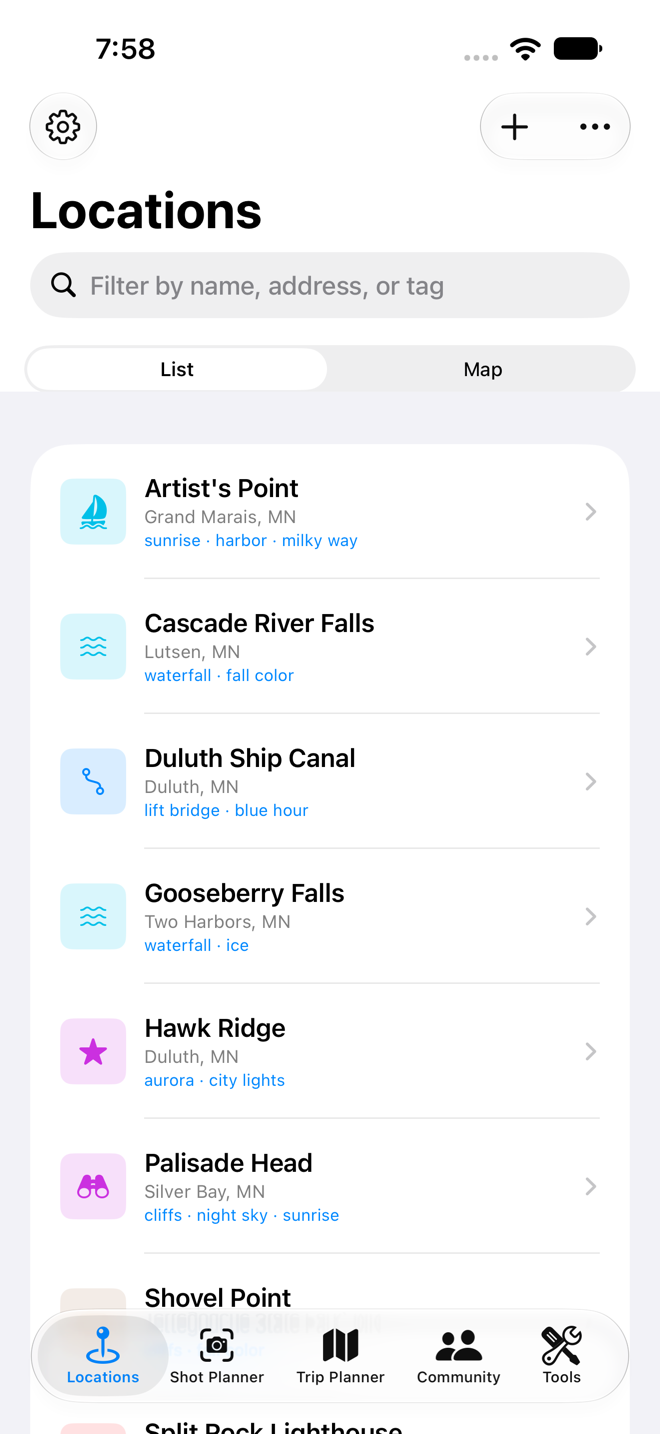
Add a location
- Open the Locations tab and tap + (Add Location).
- Under Find the location, choose one way to place it:
- Search for a name or address and pick a result.
- Use Current Location if you're standing there.
- Set from a Photo's Location to pick a photo from your library; its GPS position is used. Handy for spots you shot years ago.
- Leave it and place the pin yourself in the next step.
- Under Pin position, tap the map to fine-tune exactly where you'd stand. A few metres matter for alignments.
- Give it a Name, and optionally an Icon, Tags (like "sunset" or "waterfall"), Notes and Example Photos.
- Tap Save.
Tags are free text. Use the same few consistently ("sunrise", "sunset", "astro", "waterfall") and the filter becomes much more useful.
Find your locations again
- Switch between the map and the list with the View control.
- Tap the filter button to show only certain tags or icons. Leaving nothing selected shows everything.
- AI Location Search… filters your saved places from a sentence, such as "coastal spots tagged sunset". It needs Apple Intelligence.
- On the map, nearby pins group into a numbered cluster; zoom in to separate them.
A location's page
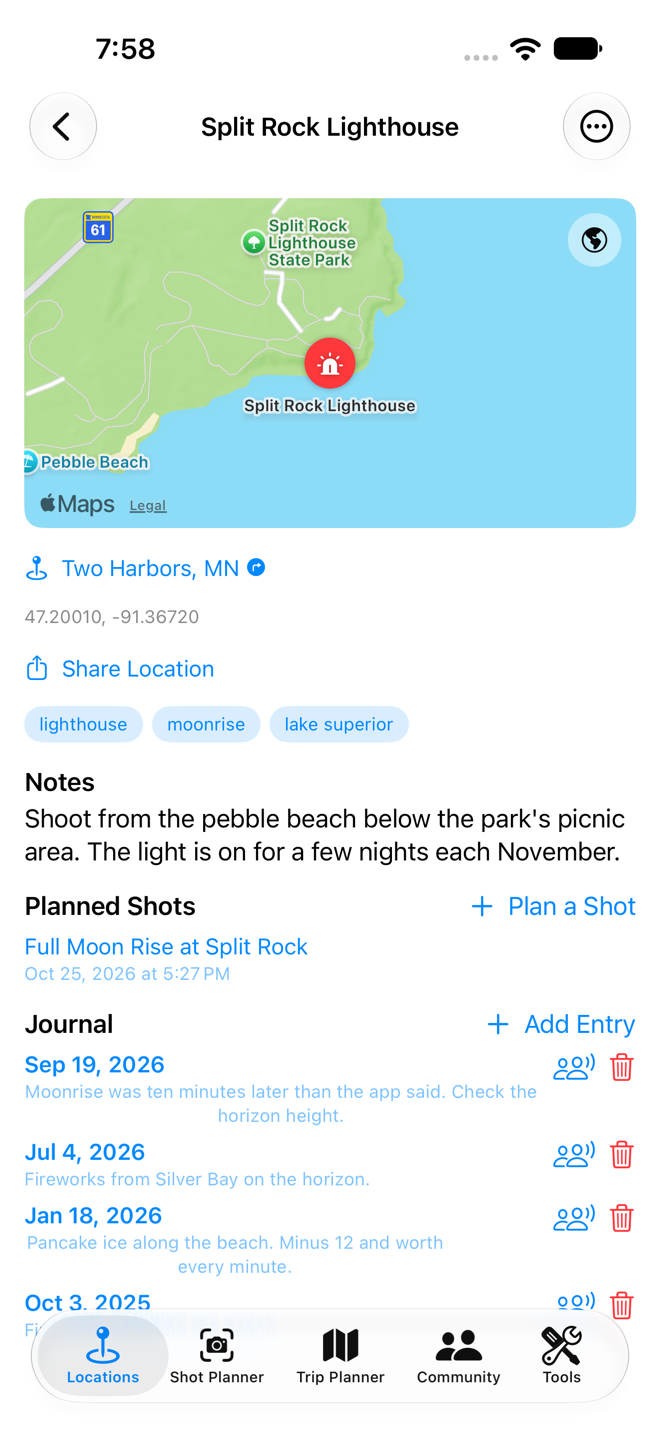
Tap a location to open it. From here you can:
- Tap the address to get driving directions in Maps.
- See the sky readings for the coming days PRO.
- See every Planned Shot at this spot, and tap Plan a Shot to start a new one here.
- Read and add to the Journal.
- Use the ··· menu to edit, share, set an alert or submit the place to the Community.
Keep a journal of visits
- Open the location and tap Add Entry under Journal.
- Set the Visit Date, add notes about the conditions, and attach photos from that visit.
- Tap Save.
Over a few seasons the journal shows how a spot changes: when the leaves turn, where the ice forms, which month the light comes through. Journal visits also count toward your yearly goals PRO.
Alert me when PRO
Location alerts tell you in advance when a saved place is forecast to be worth the trip.
- Open the location, tap ··· › Alert Me When.
- Under Tell me when, choose any mix of Colorful sunrise, Colorful sunset, Clear dark night, Fresh snow and Morning fog.
- Choose the Notice: The evening before, or Two days before (with a follow-up the evening before) for places further away.
- Tap Save.
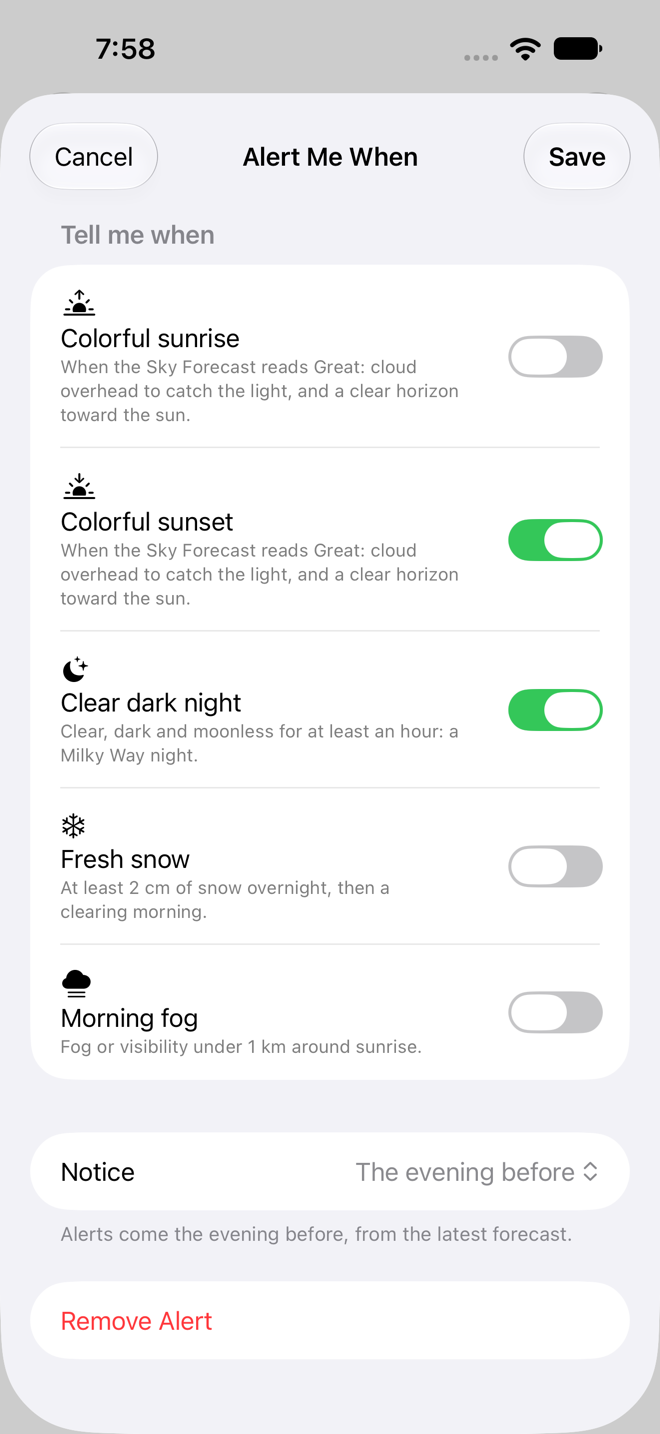
Each evening Photinerary's server wakes the app quietly, and the app checks the forecast on your device. You only get a notification when a condition you chose is forecast; on other evenings you hear nothing. To change or remove an alert, open it again from the same menu and tap Remove Alert. All your alerts are listed in Settings › Location Alerts.
How the forecasts are judged is explained in reading the Sky Forecast.
Share a location
··· › Share Location sends its name, address and coordinates by Messages, Mail or any other app. It's a copy; the person receiving it can't change your location. With Pro you can also Share to Activity for your friends to see; see Activity.
Submit a location to the Community PRO
- Open the location, tap ··· › Submit to Community….
- Choose a Category, write a short Description of what makes it worth visiting, and add photos you took yourself.
- Tap Submit. It shows as Submitted for review.
A moderator reviews each submission, and you get a notification when yours is approved. Track them in Settings › Account › My Community Submissions. Only submit photos you have the rights to; they're credited to you.