 Photinerary
Community, friends and goals
Browse thousands of photo locations, add friends, share what you're shooting, plan together, and set goals for the year.
Everything on this page is part of Photinerary Pro. Without Pro, the Community tab explains what it offers, with one button to the subscription.
Join the Community
- Subscribe to Pro. Signing in with Apple is a step of subscribing; you can hide your email.
- Open the Community tab. The first time, choose a handle (your @name) and accept the Terms of Use.
- Optionally, add a profile photo and decide whether to show your name, in Edit Profile and Community Privacy.
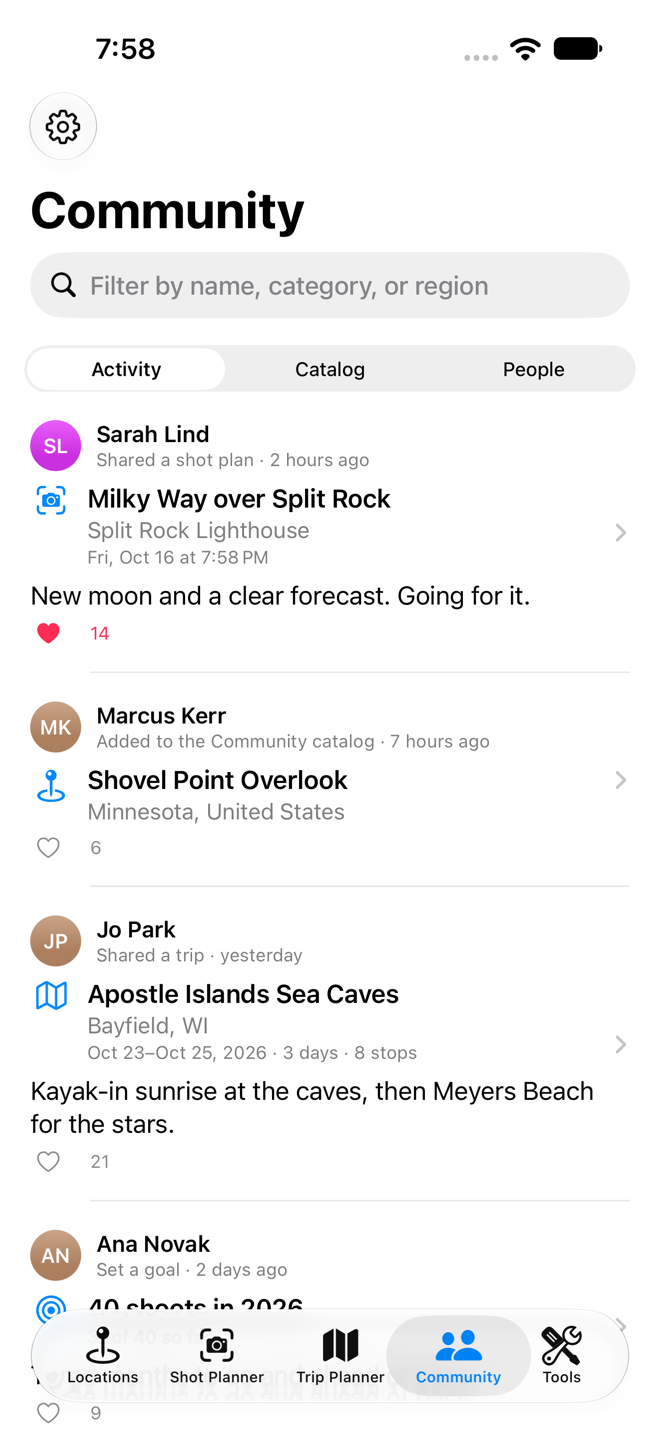
Community has three sections at the top: Activity, Catalog and People.
The locations catalog
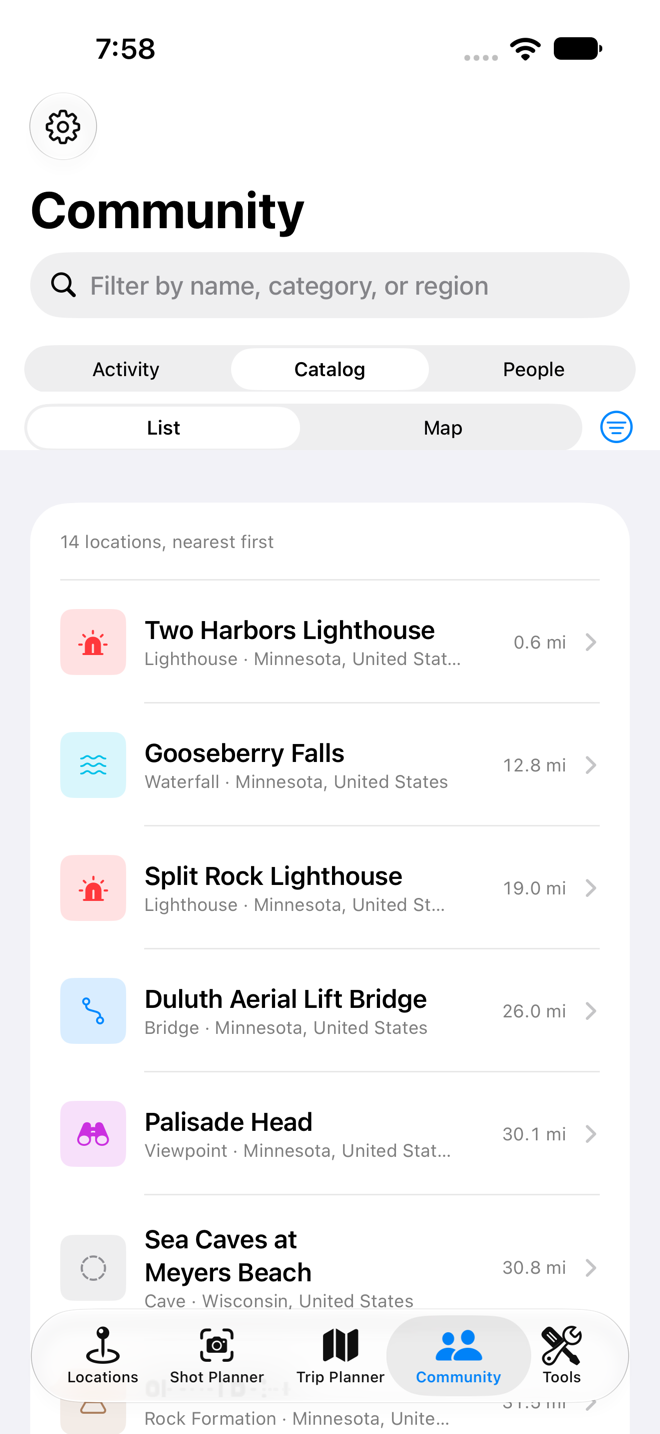
Over 8,000 photo locations with photos and credits, reviewed by a moderator.
- Open Catalog. Places are listed nearest first when location access is on.
- Tap Filters to choose Categories (waterfalls, lighthouses, viewpoints and more), a Distance, the Sort order, and whether to show only places With photos.
- Open a place for its photos and credits, the direction the view faces, and tonight's sky there.
- Save it to your own Locations, add it to a trip, or plan a shot there.
The AI trip planner draws on the catalog too. To add your own places, see Submit a location; places of yours that get into the catalog show "Added by" with your handle.
Friends
- Open People and search for someone's @handle.
- Tap Add Friend. It shows Request Sent until they answer.
- When they Accept, you're friends both ways: you see what each other share, and can invite each other to collaborate.
Requests to you appear under Friend Requests with a badge and a notification. Use Share My Profile to send someone a link to your profile.
Activity
- From a shot, trip or journal visit, choose Share to Activity….
- Add a caption.
- Decide on Show Exact Spot. Off, friends see the general area; on, they see the exact place and can save their own copy of your plan.
- Tap Post.
Your friends' posts appear in Activity, where you can like them. Turn on Tell me when friends share for a notification when they post. Your own posts are in My Shared Posts, where you can delete them.
Planning together
Collaborating means editing the same trip or shot together on our server. Sharing is different: it sends a copy that nobody can change your plan through.
- Open a trip or shot and choose Collaborate… from its ··· menu.
- Pick friends from the list, and choose Can Edit (they change the plan with you) or Can View (they follow along).
- They get an invitation in the app, with a badge on the Trip Planner or Shot Planner tab and a notification. Once they accept, everyone sees the same plan, and changes are kept in step.
As the owner you can change someone's role or remove them, or Stop Collaborating. A collaborator can Leave Trip or Leave Shot. Shared shots are in Collaborative Shots.
Goals
- Open your profile in People and tap Goals (or Set Goals when asked at the start of a year).
- Set how many shoots, photo trips and new locations you're aiming for this year.
Progress counts itself: shoots and new locations from your journal visits, trips from those you Mark as Taken. You can share your progress to Activity.
Privacy, blocking and reporting
- Every profile's ··· menu has Report and Block; every post has Report Post…. Reports go to a moderator, and we aim to respond within 24 hours.
- Blocking someone hides each of you from the other everywhere in Community and ends any friendship between you. They aren't told. Manage the list under Community Privacy › Blocked.
- Handles, names, captions and titles are checked against a word filter before they're saved.
- Turn off List my catalog places if you don't want your accepted places shown on your profile.